Engage – Use for MAGE with TIEGCM
Introduction
The Python script engage.py was developed to simplify the process of
configuring and running GTR MAGE (that is, the geospace application
of the kaiju software with TIEGCM.) It
provides an interactive, prompt-driven interface to specify all of the
parameters needed for a model run.
The engage.py script is a wrapper around the makeitso.py and TIE-GCM’s tiegcmrun
script, which is used to prepare the necessary files for a GTR MAGE model run.
The engage.py script can operate in one of three different modes:
BASIC, INTERMEDIATE, or EXPERT. Each mode provides access to
a subset of the kaiju and tiegcm parameters.
The
BASICmode Requires the user to provide the minimum set of parameters needed to specify a model run, such as the run ID, and the simulation time periods.The
INTERMEDIATEmode Allows the user to specify all of the parameters from theBASICmode, as well as a wider set of run parameters, such as non-standard file locations and some MHD parameters and TIE-GCM parameters.The
EXPERTmode Provides access to all of the user-adjustable parameters from thekaijuandTIE-GCMsoftware.
When finished, the script generates the files needed to run a magnetosphere model, and saves all options in a convenient JSON file so that the run can be repeated at a later date.
Running the engage.py script
The engage.py script is provided as part of the kaiju software. It
is found at $KAIJUHOME/scripts/makeitso/engage.py, where $KAIJUHOME
is the location of your kaiju software tree. After configuring your
kaiju software, you can get help text for the script like this:
engage.py --help
usage: engage.py [-h] [--clobber] [--debug] [--mode MODE] [--engage_options_path ENGAGE_OPTIONS_PATH] [--makeitso_options_path MAKEITSO_OPTIONS_PATH] [--tiegcm_options_path TIEGCM_OPTIONS_PATH] [--verbose]

Interactive script to prepare a MAGE magnetosphere model run.

options:
-h, --help            show this help message and exit
--clobber             Overwrite existing options file (default: False).
--debug, -d           Print debugging output (default: False).
--mode MODE           User mode (BASIC|INTERMEDIATE|EXPERT) (default: BASIC).
--engage_options_path ENGAGE_OPTIONS_PATH, -eo ENGAGE_OPTIONS_PATH
                        Path to engage JSON file of options (default: None)
--makeitso_options_path MAKEITSO_OPTIONS_PATH, -mo MAKEITSO_OPTIONS_PATH
                        Path to makeitso JSON file of options (default: None)
--tiegcm_options_path TIEGCM_OPTIONS_PATH, -to TIEGCM_OPTIONS_PATH
                        Path to tiegcm JSON file of options (default: None)
--verbose, -v         Print verbose output (default: False).
The --options_path option allows the user to specify an existing JSON file
from a previous run of engage.py so that the entire process of model
generation can be automated. More info on this given below.
The --mode option specifies the user mode to run in, with BASIC being the default.
An example in BASIC mode
This section provdes an annotated example session of engage.py running
in the default BASIC mode on the derecho supercomputer.
1. engage native parameters will be requested
engage.py
Name to use for PBS job(s) [geospace]:
Enter an identifying string to use for your model run. This name will be used
as the basis for most of the files created by engage.py, the
kaiju and TIE-GCM software. The default name is geospace.
Start date for simulation (yyyy-mm-ddThh:mm:ss) [2001-06-01T23:00:00]:
Stop date for simulation (yyyy-mm-ddThh:mm:ss) [2001-06-02T01:00:00]:
Enter the start and stop date and time for the solar wind data you want to
use. The required data will be fetched from CDAWeb, and converted into a
format usable by the kaiju software.
Do you want to split your job into multiple segments? (Y|N) [Y]:
Here Y is default and is required for the GTR run. This will
split your simulation into multiple PBS jobs that are chained together, with
each using the results of the previous job as a starting point.
Segment length in simulated seconds [7200.0]: 3600
Enter the length of each segment in simulated seconds. The default is the entire length
of the simulation, but you can enter a shorter time to split the simulation into
multiple segments. For example, if you enter 3600, the simulation will be
split into two segments, each one hour long. The first segment will run from
2001-06-01T23:00:00 to 2001-06-02T00:00:00, and the second segment will run
from 2001-06-02T00:00:00 to 2001-06-02T01:00:00.
GAMERA grid type (D|Q|O|H) [Q]:
The codes represent double- (D), quad- (Q), oct- (O) and
hex- (H) resolutions in the LFM grid used in the kaiju software.
Name of HPC system (derecho|aitken) [aitken]: derecho
The engage.py script supports the derecho and aitken
supercomputers. The selection you make here will customize the remaining
prompts for the selected system.
PBS account name [your_login_name]:
On aitken, your login name is usable here. On derecho, you will need
a PBS account ID.
Run directory [.]:
Specify the directory that you wish to perform the simulation in. The
directory will contain all of the files generated by engage.py.
Path to kaiju installation [YOUR_PATH_HERE]:
Path to kaiju build directory [YOUR_PATH_HERE]:
Enter the paths to the location of your kaiju code, and the location of
your kaiju build directory.
PBS queue name (low|normal|long|debug|devel) [normal]:
Select a PBS queue to use on the selected supercomputer.
You are responsible for ensuring that the wall time is sufficient
to run a segment of your simulation! Requested wall time for each PBS job
segment (HH:MM:SS) [01:00:00]:
Specify the wall clock time to request for your job (or each segment, if you split your job into multiple segments).
Root directory for the simulation [<YOUR_RUN_DIRECTORY_HERE>]:
This is the root directory for your simulation. It will be used to store all
of the files generated by engage.py and the kaiju and TIE-GCM
software. The default is the current directory.
Conda environment to use for the simulation [<YOUR_CONDA_ENVIRONMENT_DIRECTORY_HERE>]:
This is the path to the conda environment that you want to use for the
simulation. This is automatically set to the conda environment that you have
activated when you run the engage.py script.
2. makeitso parameters will be requested
Extend TFIN by dtCouple - 1 seconds (T|F) [T]:
This option allows you to extend the voltron TFIN time by one second. This is
required for coupled runs with TIE-GCM, and is set to T by default.
(VOLTRON) Run in GCM mode (T|F) [T]:
This option allows you to run the voltron code in GCM mode, which is required
for coupled runs with TIE-GCM. This is set to T by default.
Do you have an existing boundary condition file to use? (Y|N) [N]:
If you already have a file containing solar wind data to use for the inner
boundary conditions of your simulation, enter Y, and you will then be
prompted for the path top the file. If you don’t have the file, enter N
and you will be prompted for the date range to use.
(GAMERA) Relative path to HDF5 file containing solar wind boundary conditions [bcwind.h5]:
This is the path to your existing solar wind file, or the path that
makeitso.py will use to create the file.
(VOLTRON) File output cadence in simulated seconds [60.0]:
How often (in simulated seconds) the kaiju software should output results
during the course of the simulation.
The script then runs several additional tools to prepare the files needed for your simulation.
Running preprocessing steps.
Generating Quad LFM-style grid ...

Output: lfmQ.h5
Size: (96,96,128)
Inner Radius: 2.000000
Sunward Outer Radius: 30.000000
Tail Outer Radius: 322.511578
Low-lat BC: 45.000000
Ring params:
<ring gid="lfm" doRing="T" Nr="8" Nc1="8" Nc2="16" Nc3="32" Nc4="32" Nc5="64" Nc6="64" Nc7="64" Nc8="64"/>

Writing to lfmQ.h5
Retrieving f10.7 data from CDAWeb
Retrieving solar wind data from CDAWeb
        Using Bx fields
Bx Fit Coefficients are  [-3.78792744 -0.77915822 -1.0774984 ]
Saving "OMNI_HRO_1MIN.txt_bxFit.png"
Converting to Gamera solar wind file
        Found 21 variables and 120 lines
        Offsetting from LFM start ( 0.00 min) to Gamera start ( 0.00 min)
Saving "OMNI_HRO_1MIN.txt.png"
Writing Gamera solar wind to bcwind.h5
Making new raijuconfig.h5, destroying pre-existing file if there
Stamping file with git hash and branch, and script args
Adding waveModel to raijuconfig.h5
Reading /glade/derecho/scratch/ewinter/cgs/aplkaiju/kaipy-private/dev_312/kaipy-private/kaipy/raiju/waveModel/chorus_polynomial.txt
Adding Species to raijuconfig.h5
Adding params used to generate lambda distribution as root attribute
Creating .ini file(s) for run.
Converting .ini file(s) to .xml file(s).


Template creation complete!


Template creation complete!


The PBS scripts ['./geospace-SPINUP.pbs', './geospace-WARMUP-01.pbs', './geospace-WARMUP-02.pbs', './geospace-01.pbs'] have been created, each with a corresponding XML file. To submit the jobs with the proper dependency (to ensure each segment runs in order), please run the script geospace_pbs.sh like this:
bash geospace_pbs.sh
3. tiegcmrun parameters will be requested
Instructions:
 -> Default Selected input parameter is given in GREEN
 -> Warnings and Information are given in YELLOW
 -> Errors are given in RED
 -> Valid values (if any) are given in brackets eg. (value1 | value2 | value3)
 -> Enter '?' for any input parameter to get a detailed description


 Run Options:
 User Mode = BASIC
 Compile = False
 Execute = False
 Coupling = True
 Engage = True
Directory of model [<YOUR_TIEGCMHOME_HERE>]:
Directory of Tiegcm Data Files [<YOUR_TIEGCMDATA_HERE>]:
This is the path to your TIE-GCM repository and TIE-GCM data directory. This is automatically set to to the TIEGCMHOME and TIEGCMDATA environment variables
Standalone Executable [<YOUR_TIEGCM_STANDALONE_EXECUTABLE_HERE>]:
This is the path to the TIE-GCM standalone executable. This is automatically set
to the tiegcm.exe in current directory.
Coupled Executable [<YOUR_TIEGCM_COUPLED_EXECUTABLE_HERE>]:
This is the path to the TIE-GCM coupled executable. This is automatically set
to the tiegcm.x in current directory.
Low = 70, Medium = 140 , High = 200
F107 flux level for TIEGCM spin up (low|medium|high) [low]:
This is the F10.7 flux level to use for the TIE-GCM source file in spin-up period. The
default is low, which corresponds to a value of 70. The other options are
medium (140) and high (200).
SOURCE file location [/glade/campaign/hao/itmodel/tiegcm3.0/new_data/source/junsol_f70.nc]:
This is the path to the TIE-GCM source file to use for the spin-up period. The default is automatically selected based on the start date of your simulation.
Selected date in source file Example: (173,0,0,0) [173 0 0 0]:
STEP number [30]:
NSTEP_SUB number [10]:
These parameters are set as default by the tiegcmrun
Secondary Output Fields [['TN', 'UN', 'VN', 'NE', 'TEC', 'POTEN', 'Z', 'ZG']] / ENTER to go next:
These are the secondary output fields to include in the TIE-GCM output. The default is a set of fields that are commonly used in geospace simulations. You can add another filed if you wish, or just hit Return to accept the default.
High-latitude potential model that is going to be used (HEELIS|WEIMER) [HEELIS]:
This is the high-latitude potential model to use in the TIE-GCM simulation.
The default is HEELIS, which is the Heelis potential model is required for
coupled runs with the kaiju software.
If GPI_NCFILE is specified, then KP and POWER/CTPOTEN are skipped. If further POTENTIAL_MODEL is WEIMER and IMF_NCFILE is specified, then the Weimer model and aurora will be driven by the IMF data, and only F107 and F107A will be read from the GPI data file.
GPI file [/glade/campaign/hao/itmodel/tiegcm3.0/new_data/boundary_files/GPI/gpi_1960001-2024332.nc]:
This is the path to the GPI file to use for the TIE-GCM simulation which contrains solar wind data. The default is automatically selected based on the start date of your simulation.
After these inputs, the script interpolates source file for TIEGCM, and generates XML and PBS files for the run, as well as a grid file for use in the model.
You should see output similar to this:
/glade/derecho/scratch/nikhilr/GTR58 exitsts
/glade/derecho/scratch/nikhilr/GTR58 exitsts
/glade/derecho/scratch/nikhilr/GTR58 exitsts
Interpolating primary file /glade/campaign/hao/itmodel/tiegcm3.0/new_data/source/junsol_f70.nc to create new primary file /glade/derecho/scratch/nikhilr/GTR58/tiegcm_standalone/geospace-tiegcm-standalone_prim.nc at horizontal resolution 2.5 and vertical resolution 0.25 with zitop 7.0.
Creating new primary file:  /glade/derecho/scratch/nikhilr/GTR58/tiegcm_standalone/geospace-tiegcm-standalone_prim.nc
pbs_scripts = ['./geospace-01.pbs', './geospace-02.pbs']
submit_all_jobs_script = geospace_pbs.sh
When finished, the script creates the file runid.json, where runid is
the identifying string for your simulation. This file contains a record of all
of the parameters used in your simulation. This file can be passed back to
engage.py in a subsequent session to repeat the simulation, and also
provides a convenient starting point for minor tweaks to your simulation
parameters.
There are several types files created for each of the jobs, including:
*.pbsThese are the PBS scripts that will be submitted to the job scheduler to run the segments of the simulation.
*.xmlThese are the XML files that contain the parameters for GAMERA and RAIJU of the segment.
*.inpThese are the namelist files that contain parameters for TIE-GCM of the segment.
*.jsonThese are the JSON files that contain the parameters for the simulation. They are generated by the
engage.pyscript with all the parameters required to run the simulation.
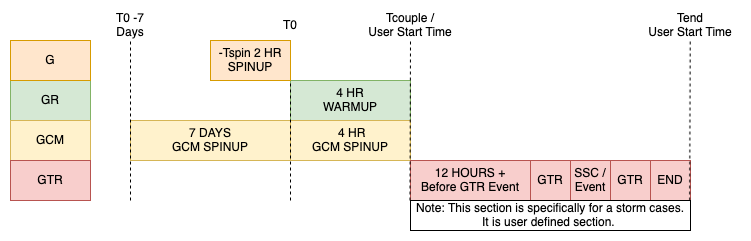
The run is divided into segments:
geospace-SPINUP.*This segment runs the GAMERA model to create the initial conditions for the simulation. It is run first, and its output is used by the next segment.
geospace-WARMUP-**.*These segments runs the GAMERA RAIJU model to “warm up” for for the coupled model execution. The
-01,-02, etc. suffixes indicate the segment number, and the segments are run in order.
tiegcm_standalone-**.*This segment runs the TIE-GCM model to create the initial conditions for the coupled model. The
-01to-02, etc. suffixes indicate the segment number, and the segments are run in order.
geospace-**.*These segments runs the GTR coupled modele. The
-01,-02, etc. suffixes indicate the segment number, and the segments are run in order.
This image shows how the segments are run in order:
Additional parameters in INTERMEDIATE and EXPERT mode
Many more parameters are available in INTERMEDIATE and EXPERT modes.
These parameters are documented in the file option_descriptions.json,
which is stored in the same directory as the engage.py script.
Using JSON files for engage.py
The engage.py script can also be run in a non-interactive mode, where it
reads a JSON file containing the parameters for the simulation. This allows
you to automate the process of running the simulation, and to easily repeat
the simulation with the same parameters.
- The
engage.pyscript requires three JSON files to be specified: engage_options_pathThis is the path to the JSON file containing the parameters for theengage.pyscript. It contains the parameters that are specific to theengage.pyscript, such as the run ID, start and stop dates, and so on.makeitso_options_pathThis is the path to the JSON file containing the parameters for themakeitso.pyscript. It contains the parameters that are specific to themakeitso.pyscript, such as the GAMERA grid type, segment length, and so on.tiegcm_options_pathThis is the path to the JSON file containing the parameters for thetiegcmrunscript. It contains the parameters that are specific to the TIE-GCM simulation, such as the source file, F10.7 flux level, and so on.
To run the engage.py script in non-interactive mode, you can use the
following command:
.. code-block:: bash
engage.py –engage_options_path /path/to/engage_input.json –makeitso_options_path /path/to/makeitso_input.json –tiegcm_options_path /path/to/tiegcm_input.json
- Here are templates for the JSON files:
These JSON files can be used as a starting point for your own simulations. You will need to modify certain parameters in them:
engage_input.json:
start_date: The start date of your simulation.
stop_date: The stop date of your simulation.
segment_duration: The duration of each segment in simulated seconds.
gamera_grid_type: The GAMERA grid type to use (D, Q, O, or H).
kaiju_install_directory: The path to your
kaijuinstallation directory.kaiju_build_directory: The path to your
kaijubuild directory.makeitso_input.json:
Automcatically generated by the
engage.pyscript, but you can modify the parameters if needed.tiegcm_input.json:
modeldir: The path to your TIE-GCM repository.
tgcmdata: The path to your TIE-GCM data directory.
modelexe: The path to the TIE-GCM standalone executable.
coupled_modelexe: The path to the TIE-GCM coupled executable.
solar_flux_level: The F10.7 flux level to use for the TIE-GCM source file in spin-up period (low, medium, or high).
SECFLDS: The secondary output fields to include in the TIE-GCM output.
Automcatically generated by the
engage.pyscript, but you can modify the parameters if needed.